Guitar Chord Finder
What chord is this shape?
Enter the places you are holding on the virtual fretboard and the tool shows chord names that match. Use it when your hand finds a sound before you know its name, or when you want to save a voicing you learned by ear.
Open Chord Finder Browse Chord ChartHow to read the screen
The tool opens with a C chord. Use the numbered guide to change it to the shape in your hand.
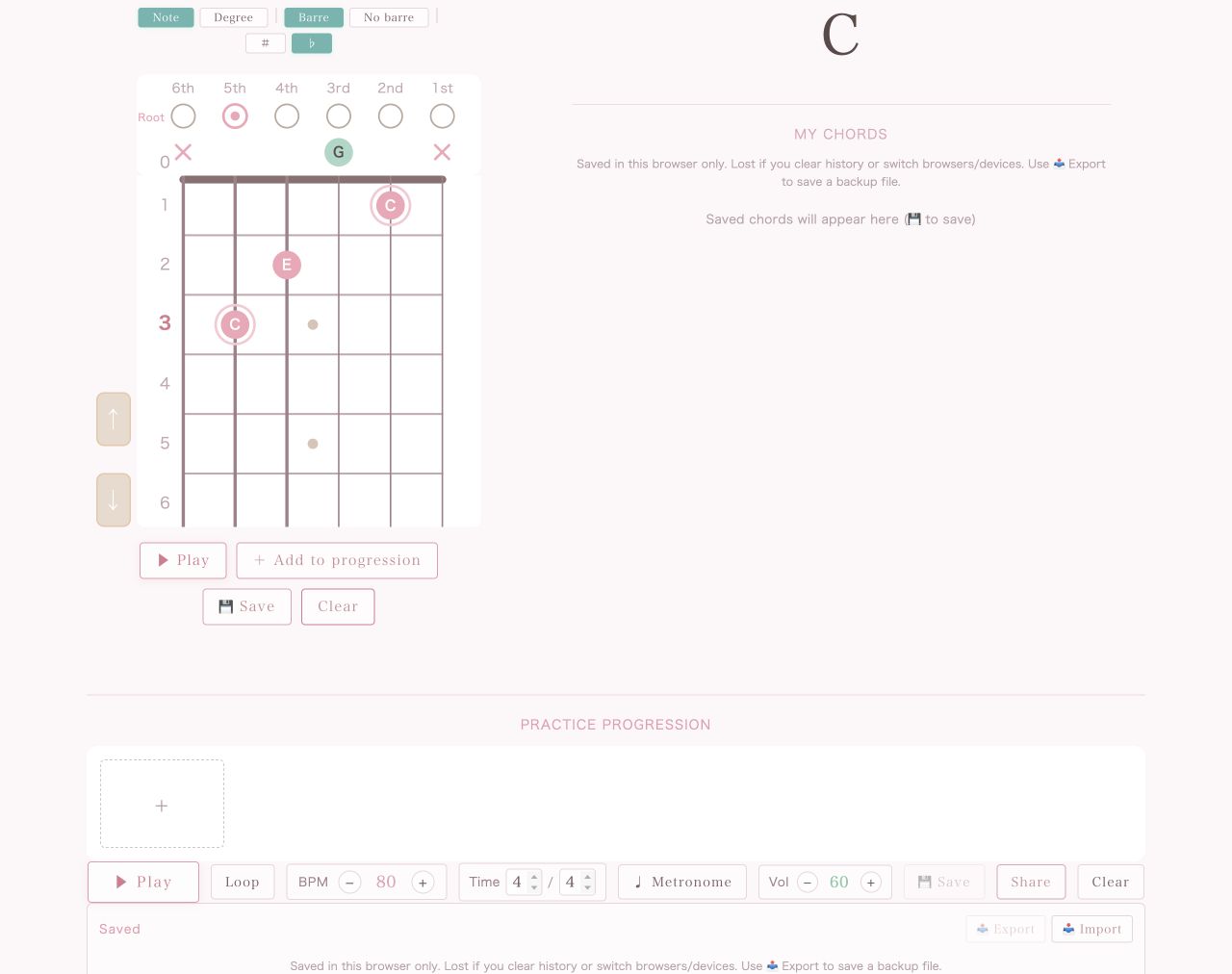 1
2
3
4
5
6
The root note is the foundation of the chord
The root note is the foundation that gives a chord its name. The first letter in a chord symbol usually names the root. A C chord, for example, is built from C as the root with the notes C, E, and G.
The same group of notes can sometimes support more than one chord name. The circles above the strings let you specify which string contains the root. This is one of the most important steps in finding the intended chord name.
Begin by treating the lowest sounding note as the root. This is the essential starting point for basic chord shapes. Once that foundation is clear, you can move on to slash chords and inversions, where a note other than the root is played in the bass.
- Choose the display
Switch between Note and Degree, Barre and No barre, or sharp and flat spellings. The default settings are a good place to begin.
- Enter the fingering from the 6th to the 1st string
Tap each fret you are holding. An open string appears as a green circle, while a string that should not sound appears as an X.
- Select the root string
Tap the circle above a string to identify it as the string containing the root note. For a basic chord, choose the string with the lowest sounding note. This step is crucial for getting the intended chord name.
- Check the chord name
The matching chord name appears in large type. If several names are possible, choose the one that fits the sound and its role in the song.
- Listen and save
Use Play to hear the voicing. Save keeps the shape in My Chords, while Add to progression places it in your practice sequence.
- Practice a chord sequence
Your added chords appear in the practice progression. Adjust BPM, Loop, and Metronome to work on chord changes.
Common points of confusion
- Green circle or X
- A green circle means an open string. An X means that the string should be muted and not played.
- Selecting the root string
- The root is the foundation of the chord. Tap one of the circles above the six strings to choose the string that contains it.
- No chord name appears
- Check whether a string you are not playing is marked as an open green circle. Change that string to X and try again.
- Moving the whole shape
- Use the up and down buttons beside the fretboard to shift the complete fingering by one fret.
Frequently asked questions
Do I need to install anything or create an account?
No. The tool runs directly in your browser.
Can I save a chord I find?
Yes. Select Save to keep it in My Chords. Saved data remains in the browser you are currently using.
Does it work on a phone?
Yes. You can enter the fingering by tapping the fretboard in a mobile browser.